

Gamers are always hunting for that perfect edge, right? We all want smoother, faster gameplay without our rigs begging for mercy. boost FPS tweaks come in. I know the frustration of laggy frame rates (it) feels like betrayal mid-battle.
You deserve better, and so does your game.
Why settle for choppy gameplay when you can max out your experience? You might be wondering, do these tweaks really work? Yes, they do, and I’ve seen the transformation firsthand.
There’s nothing like out-gunning an opponent because your screen’s faster than theirs.
This isn’t just theory. It’s battle-tested advice from people who live and breathe gaming essentials. There’s no room for guesswork here.
We dive into real solutions that turn your gaming rig into a competitive beast.
Stick around, because by the end of this piece, you’ll know exactly how to give your frames-per-second the boost it deserves. Let’s power your play.
The First Assault: Quick FPS Wins Inside Your Game Settings
You want to jump into competitive gaming, but every frame matters. Let’s cut through the fluff and get straight to the boost FPS tweaks you need.
First up, the Big Three FPS Killers: Shadows, Anti-Aliasing (AA), and Texture Quality. Shadows eat up your resources like no tomorrow. They add depth but at a massive cost.
So lower them by one level and feel the difference. Anti-Aliasing smooths those jagged edges, but it’s a GPU hog. Switch from MSAA to FXAA.
You might lose a bit of sharpness, but your FPS will thank you. As for Texture Quality, dial it down to medium. High settings are for screenshots, not speed demons.
Now, let’s talk about screen tearing. It’s that ugly visual glitch where the screen splits. V-Sync can fix it, sure, but at the cost of input lag and capped FPS.
For competitive edge, keep V-Sync off. Use G-Sync or FreeSync if your setup supports it. And if those aren’t options, maybe just deal with some tearing for the lowest latency possible.
It’s a trade-off, but being faster is often better than being perfect.
Beyond these, you’ve got stuff like Volumetric Fog/Clouds and Ambient Occlusion. These settings are nice but not key. Set them low and forget about them.
Same goes for Post-Processing. Save those frames for what’s important: your reaction time, not eye candy.
If you’re serious about reducing latency edge gaming, these tweaks are your first step. Remember, it’s about performance, not just pretty graphics. No need to look like a Pixar movie when you can play like a pro.
Try these changes today. You’ll see an improvement without shelling out for new hardware. Why wait?
Jump in, make the adjustments, and get back to gaming. The low-hanging fruit is ripe for the picking.
System-Level Warfare: Windows Tweaks for Maximum FPS
Ever feel like your game is lagging, but you can’t quite put your finger on why? It’s possible your operating system is slowly siphoning away that precious processing power. I know, right?
You’d think the OS would play nice.
First things first, tame those background processes. Open up Task Manager and give it a hard look. You’ll see apps you never asked for hogging resources.
Discord’s hardware acceleration is often guilty. Those browser tabs and launcher updates (I’m looking at you, Steam and Epic) are no saints either. Kill what you don’t need.
Then there’s this little gem that’s not widely known: the Ultimate Performance power plan. It’s like giving your PC a shot of espresso. It cuts down on micro-latencies and makes sure your CPU is always on its toes, unlike the lazy “Balanced” mode.
To let it, open Command Prompt as administrator and type powercfg -duplicatescheme e9a42b02-d5df-448d-aa00-03f14749eb61. Then head to Power & Sleep settings to select it. Simple, but potent.
Windows Game Mode and GPU Scheduling are next in line. They’ve got these fancy names but think of them as bouncers at a nightclub (CPU club, if you may). Game Mode makes sure your game gets front-of-the-line service.
GPU Scheduling, meanwhile, cuts latency and keeps the graphics flowing smoothly. Just toggle them on in Windows Settings. In a few clicks, your game runs like a dream.
Getting hardcore about your settings can sometimes feel like a scene from a heist movie. You fiddle with every knob and lever (digitally speaking) and achieve victory. For more tricks, check out these boost FPS tweaks.
They’ll arm you with what you need to keep your rig performing at its peak.
Are you ready to jump in and make these changes? They’re quick but make a big difference. Now go forth and conquer your frame rate enemy.
The Elite Tier: Mastering Your GPU Control Panel
Are you ready to push your hardware to its absolute limit? to the command center of your gaming rig: the GPU control panel. It’s where you can make your games run smoother than a greased-up cheetah. (No, really.)
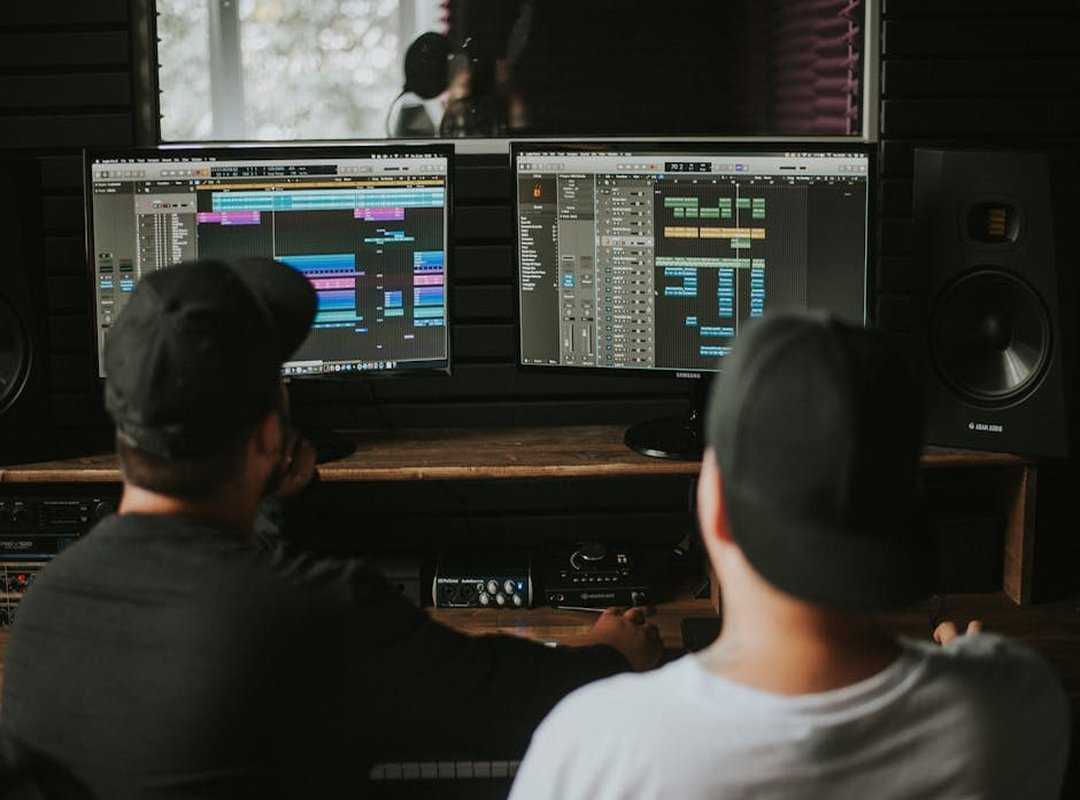
First things first. Finding your control panel is easy. Just right-click on your desktop.
If you’re team NVIDIA, you’ll see the NVIDIA Control Panel. If you’re more of an AMD fan, look for the AMD Radeon Software. Now, brace yourself.
We’re about to open up some serious power.
For NVIDIA users, the “Power management mode” is your best friend. Set it to “Prefer maximum performance” to give your GPU the green light to go all out. Want to reduce input lag?
Turn on “Low Latency Mode” (either On or Ultra). And don’t forget “Texture filtering – Quality.” Set this to “High performance” for the best FPS boost.
AMD folks, you’ve got your own tricks up your sleeve. “Radeon Anti-Lag” is a must for cutting down on input lag. “Radeon Boost” dynamically adjusts resolution during movement to maintain high FPS. And “Tessellation Mode”? Override it and set it lower to keep your frames buttery smooth.
But here’s the thing: one size doesn’t fit all. per-game profiles come in. If you’re obsessed with competitive games like Valorant or Apex Legends, you need specific settings. Create a profile for your main game.
Crank up the performance settings there while keeping other games on quality settings. It’s a key competitive advantage.
These tweaks aren’t just about numbers. They’re about dominating your opponents. The right settings can make the difference between a win and a loss. (Ever lost a match because of a lag spike?
The worst.)
And don’t think it ends here. To truly improve your gameplay, you need to consider network settings as well. For more on this, you can learn more.
So, are you ready to boost FPS tweaks and take your gaming to the next level? Dive into your control panel and get tweaking. Your leaderboard position will thank you.
The Final Frontier: When Software Adjustments Aren’t Enough
So, you’ve tried every boost FPS tweak imaginable. All those software tricks, yet your games still stutter. Frustrating, right?
Here’s the deal: maybe it’s not the software. Ever heard of a hardware bottleneck? It’s when your shiny new graphics card is shackled by an ancient processor.
After maximizing software, the next logical step is hardware. Upgrade your CPU, GPU, and RAM to truly open up performance. Balance is key.
It’s about getting these components in harmony (like a well-tuned band). Stop blaming the software. Sometimes, it’s your dated hardware holding back the masterpiece you’re trying to experience.
Unleash Your Frame Power
You’ve got a full plan to boost FPS tweaks. Low FPS? It’s eating your wins.
This approach works because it optimizes everything (game settings, OS, drivers). Nothing gets left behind.
Now, here’s your move: stop reading. Start tweaking. Apply these steps before your next match and see the difference.
It’s time to reclaim your competitive edge. Want more frames? Of course you do.
Get in there. Feel the power of a game that finally performs.
 There is a specific skill involved in explaining something clearly — one that is completely separate from actually knowing the subject. Selrith Norcrofta has both. They has spent years working with gaming pulse in a hands-on capacity, and an equal amount of time figuring out how to translate that experience into writing that people with different backgrounds can actually absorb and use.
Selrith tends to approach complex subjects — Gaming Pulse, Performance Boosting Builds, Optimization Tips for Gamers being good examples — by starting with what the reader already knows, then building outward from there rather than dropping them in the deep end. It sounds like a small thing. In practice it makes a significant difference in whether someone finishes the article or abandons it halfway through. They is also good at knowing when to stop — a surprisingly underrated skill. Some writers bury useful information under so many caveats and qualifications that the point disappears. Selrith knows where the point is and gets there without too many detours.
The practical effect of all this is that people who read Selrith's work tend to come away actually capable of doing something with it. Not just vaguely informed — actually capable. For a writer working in gaming pulse, that is probably the best possible outcome, and it's the standard Selrith holds they's own work to.
There is a specific skill involved in explaining something clearly — one that is completely separate from actually knowing the subject. Selrith Norcrofta has both. They has spent years working with gaming pulse in a hands-on capacity, and an equal amount of time figuring out how to translate that experience into writing that people with different backgrounds can actually absorb and use.
Selrith tends to approach complex subjects — Gaming Pulse, Performance Boosting Builds, Optimization Tips for Gamers being good examples — by starting with what the reader already knows, then building outward from there rather than dropping them in the deep end. It sounds like a small thing. In practice it makes a significant difference in whether someone finishes the article or abandons it halfway through. They is also good at knowing when to stop — a surprisingly underrated skill. Some writers bury useful information under so many caveats and qualifications that the point disappears. Selrith knows where the point is and gets there without too many detours.
The practical effect of all this is that people who read Selrith's work tend to come away actually capable of doing something with it. Not just vaguely informed — actually capable. For a writer working in gaming pulse, that is probably the best possible outcome, and it's the standard Selrith holds they's own work to.