
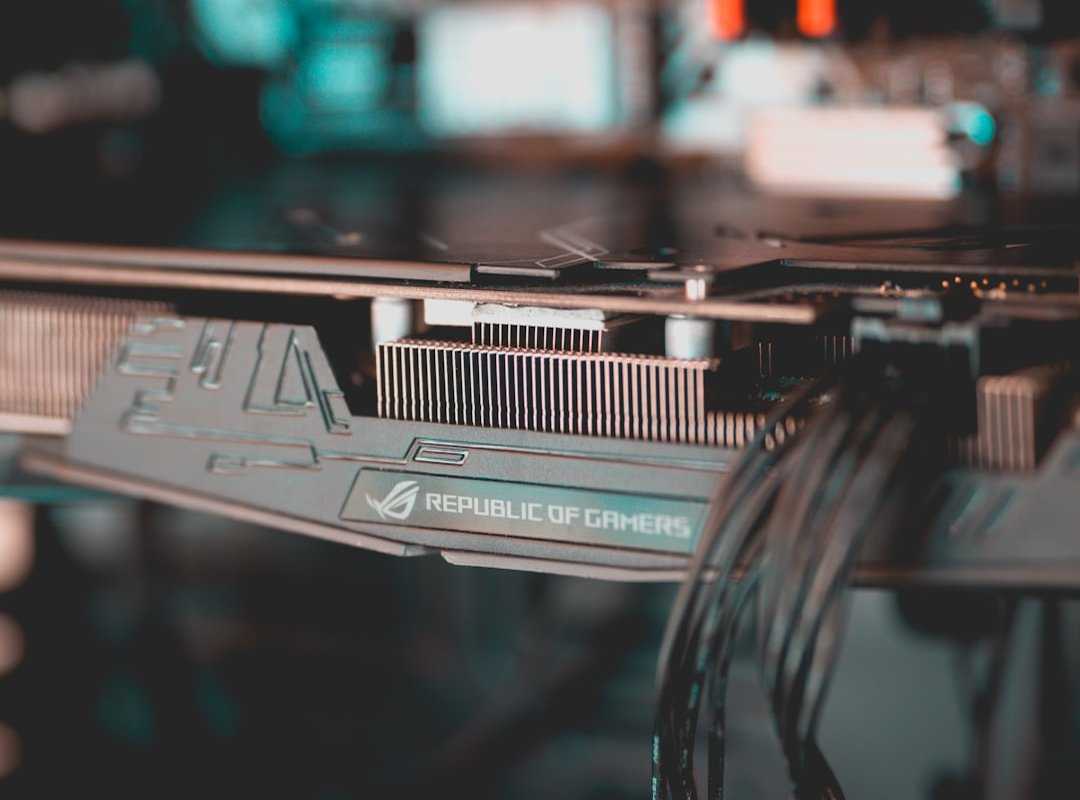
Picture this: You’re in the heat of a battle, every move counts, and then it happens (an) FPS drop. Frustrating, right? If you’re like me, you want every bit of performance from your graphics card.
Does that sound familiar? I’ve spent years building and optimizing gaming rigs, turning good GPUs into great ones.
What if I told you there are simple tweaks you can make today to avoid those lag spikes? In this guide, I’ll share our most effective GPU performance enhancement techniques. From basic driver updates to advanced tuning, we’ve got you covered.
Expect clear, no-fluff advice you can apply regardless of your skill level. Trust me, these overclocking tips GPUs can transform your gaming experience. Ready to squeeze out every last frame?
Let’s dive in.
The Foundation: Performance Boosts from Simple Fixes
Let’s cut the noise. The biggest performance gains often come from the simplest software fixes. And guess what?
They’re free. You don’t need to dive into the world of overclocking tips GPUs right away. Start with updating your GPU drivers.
Use NVIDIA GeForce Experience or AMD Software: Adrenalin Edition.
Pro tip: always choose ‘Clean Installation.’ This wipes out old, conflicting files that could mess with your system. Trust me, you’ll thank yourself later. Now, let’s talk about the GPU control panel.
Whether you’re rocking NVIDIA Control Panel or AMD Radeon Software, there are a few settings you need to tweak.
First up, ‘Power Management Mode.’ Set it to ‘Prefer maximum performance.’ It’s like giving your GPU a shot of espresso. Then there’s ‘Texture filtering – Quality.’ Lowering it can free up some juice for more demanding tasks.
Speaking of juice, let’s not forget in-game settings. Shadows, Anti-Aliasing, Ambient Occlusion. These are your usual suspects.
They look pretty but can murder your framerate. A ‘Competitive’ or ‘Performance’ preset can be a good starting point. Tweak from there, depending on how much eye candy you want versus smooth gameplay.
And hey, don’t overlook Windows settings. Enabling ‘Game Mode’ is a no-brainer. It prioritizes your games over background processes.
Also, kill any unnecessary startup programs. They just sit there like freeloaders, hogging resources.
For more on tweaking, check out this power management gaming efficiency guide. It’s packed with practical tips. Remember, small changes can make a big difference.
So, before you shell out for new hardware, try these free fixes. They often do the trick.
Unleashing Potential: Quick Overclocking And Undervolting Guide
to the world of overclocking and undervolting. It’s like telling your GPU it’s safe to run a little faster and more efficiently. Trust me, it feels like a secret club when you get it right.
Overclocking is about increasing your GPU’s clock speed and memory frequency. You know, making it work harder without burning out.
I recommend MSI Afterburner; it’s user-friendly and gets the job done. But overclocking isn’t just about cranking up the speeds. You need to increase the core clock in small increments, say, +15 MHz.
Patience is key here. Test each increase with a benchmark tool like Unigine Heaven to check for stability. Repeat for memory clock.
Now, here’s a pro tip: monitor temperatures throughout. Aim for under 85°C. Not managing heat?
That’s a rookie mistake. And we’ve all been there.
Let’s switch gears to undervolting. It’s like the flip side of overclocking. You’re achieving the same (or better) performance with less power and heat.
That’s a win-win, right? It gives you a competitive edge, maintaining boost clocks without frying your GPU.
Using MSI Afterburner’s voltage/frequency curve editor, you find the lowest stable voltage for your desired clock speed. Sounds tricky? It is, a bit.
But the rewards? Lower temps, less fan noise, stable performance. Absolutely worth it.
And if you’re still wondering how to overclock your graphics card, there are loads of guides out there. Just keep it simple and don’t rush. Overclocking tips for GPUs often sound daunting, but once you get the hang of it, it’s empowering.
Here’s the lesson: tread carefully. Push your hardware to its limits, but keep it safe. You don’t want to end up with a fried GPU.
Adjust wisely, test often.
The Physical Edge: Cooling, Airflow, and Maintenance
Transitioning from software to hardware can be a revelation. You can have the best overclocking tips for GPUs, but if your card’s thermal throttling, forget it. We (yes, even the pros) often neglect this.
Getting straight to cleaning your GPU is key. Power it down first. Seriously, don’t skip this.
Use compressed air to blow dust out of the heatsink and fans. Watch out for that caked-on dust, it suffocates the card and spikes temperatures. It’s like wearing a winter coat in the summer.
Now, let’s talk airflow. Ever heard of giving your PC “lungs to breathe?” Well, it’s all about the airflow path. Intake fans pull cool air in, and exhaust fans push hot air out.
Seems obvious, right? But I’ve seen setups where the airflow direction is a complete mess. Ideally, place intake fans at the front or bottom and exhaust at the top or rear.
This setup could be the breath of fresh air your PC needs.
Thermal paste re-application is not for the faint-hearted. When that old paste dries out, say hello to sky-high temps on an aging card. Yes, it’s more involved.
But reapplying can restore performance on those older GPUs. It’s almost like giving your hardware a new lease on life.
Feeling overwhelmed? You don’t have to be, you just need the right guide. Want to dive deeper into building a powerhouse of a rig?
Check out this guide.
Maintenance might seem tedious, but trust me, it’s the backbone of performance. Without it, even the best software tweaks are just wishful thinking. Keep it cool, keep it clean, and watch your hardware thrive.
Knowing the Limits: When an Upgrade is the Final Tweak
Every piece of hardware has its limits. You know it, I know it. But when do you finally say goodbye to your trusty GPU?
It’s not just about the performance numbers. It’s about those little hints (like) when you can’t hit 60 FPS in new games even on low settings. That’s a sure sign your GPU is begging for retirement.
Another clue? When your GPU becomes the bottleneck. Your shiny new CPU is there, ready to roll, and your GPU is holding it back.
The modern features like DLSS, FSR, or Ray Tracing can dramatically boost performance and visuals, but only if your hardware supports them.
Upgrading isn’t a failure; it’s the ultimate tweak for that slick gaming experience we all crave. Want to choose the right GPU? Match it to your monitor’s resolution and refresh rate.
Make sure your power supply can handle the beast. And hey, don’t forget those overclocking tips GPUs love to whisper about. They’re a game-changer, but sometimes even the best tweaks can’t push old tech any further.
Level Up Your Gaming Performance
We’ve walked through the maze of software tweaks and hardware upgrades, all aimed at one goal: turning your GPU from a bottleneck into a beast. A sluggish GPU can wreck your game, but with the right mix of overclocking tips GPUs and hardware takeaways, you can change that. Now’s your moment.
If your current card is maxed out, don’t settle for less. Check out pboxcomputers.com.co for performance-boosting builds that crush the competition. Don’t let a slow GPU hold you back.
Explore these options and grab that competitive edge you’ve been chasing. The next level of gaming awaits.
 Stephanie Martinezenic writes the kind of optimization tips for gamers content that people actually send to each other. Not because it's flashy or controversial, but because it's the sort of thing where you read it and immediately think of three people who need to see it. Stephanie has a talent for identifying the questions that a lot of people have but haven't quite figured out how to articulate yet — and then answering them properly.
They covers a lot of ground: Optimization Tips for Gamers, Pbox Competitive Gaming Rigs, Performance Boosting Builds, and plenty of adjacent territory that doesn't always get treated with the same seriousness. The consistency across all of it is a certain kind of respect for the reader. Stephanie doesn't assume people are stupid, and they doesn't assume they know everything either. They writes for someone who is genuinely trying to figure something out — because that's usually who's actually reading. That assumption shapes everything from how they structures an explanation to how much background they includes before getting to the point.
Beyond the practical stuff, there's something in Stephanie's writing that reflects a real investment in the subject — not performed enthusiasm, but the kind of sustained interest that produces insight over time. They has been paying attention to optimization tips for gamers long enough that they notices things a more casual observer would miss. That depth shows up in the work in ways that are hard to fake.
Stephanie Martinezenic writes the kind of optimization tips for gamers content that people actually send to each other. Not because it's flashy or controversial, but because it's the sort of thing where you read it and immediately think of three people who need to see it. Stephanie has a talent for identifying the questions that a lot of people have but haven't quite figured out how to articulate yet — and then answering them properly.
They covers a lot of ground: Optimization Tips for Gamers, Pbox Competitive Gaming Rigs, Performance Boosting Builds, and plenty of adjacent territory that doesn't always get treated with the same seriousness. The consistency across all of it is a certain kind of respect for the reader. Stephanie doesn't assume people are stupid, and they doesn't assume they know everything either. They writes for someone who is genuinely trying to figure something out — because that's usually who's actually reading. That assumption shapes everything from how they structures an explanation to how much background they includes before getting to the point.
Beyond the practical stuff, there's something in Stephanie's writing that reflects a real investment in the subject — not performed enthusiasm, but the kind of sustained interest that produces insight over time. They has been paying attention to optimization tips for gamers long enough that they notices things a more casual observer would miss. That depth shows up in the work in ways that are hard to fake.