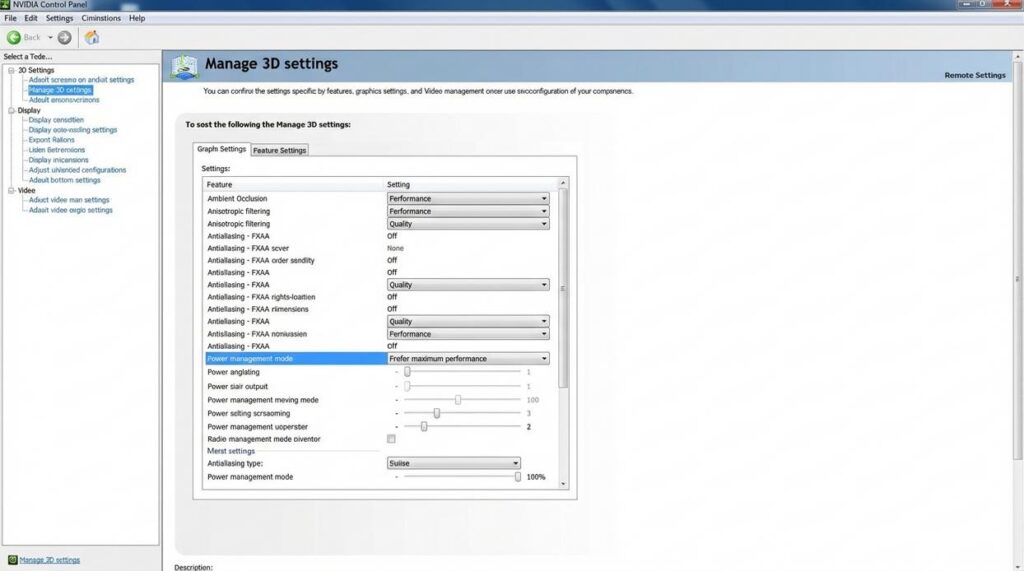
If you’re looking to optimize windows for gaming, you’re probably tired of frame drops, input lag, and background processes draining performance when it matters most. Whether you’re running a competitive esports title or a demanding AAA release, small system tweaks can make a noticeable difference in responsiveness and stability.
This guide is built specifically for gamers who want practical, results-driven improvements—not vague advice. We’ll break down the essential Windows settings, performance adjustments, and system optimizations that directly impact FPS, latency, and overall smoothness. From disabling unnecessary startup programs to fine-tuning graphics and power settings, every recommendation is focused on measurable gains.
Our approach is based on real-world testing across multiple gaming builds and performance benchmarks, ensuring the steps outlined here are both safe and effective. By the end of this article, you’ll know exactly how to streamline your system for peak gaming performance without compromising stability.
Unlock Peak FPS: Your Ultimate Windows Gaming Optimization Guide
Stutters. Random frame drops. Input lag that makes you miss the shot. Few things are more frustrating than underperforming hardware that should be crushing your favorite titles.
Here’s the fix: a proven, no-fluff checklist to optimize windows for gaming and unlock smoother performance—without spending a dime.
Some argue modern Windows auto-manages everything. Not quite. Default settings prioritize balance, not raw FPS.
Start here:
- Enable Game Mode in Windows Settings
- Set your GPU as the preferred graphics processor
- Switch to the High Performance power plan
- Disable unnecessary startup apps
These tweaks are tested, measurable, and impactful (not placebo). Squeeze every frame from what you already own.
The Foundation: Essential Windows Gaming Settings to Change Now
If you want to optimize windows for gaming, start with the settings that actually move the needle. In my experience, these four tweaks deliver noticeable gains without spending a dollar.
Enable Game Mode
Game Mode is a built-in Windows feature that prioritizes system resources for your game by limiting background tasks and stabilizing frame rates. Microsoft states it helps maintain consistent performance during gameplay (Microsoft Support).
To enable it:
- Open Settings → Gaming → Game Mode
- Toggle Game Mode to On
Some argue it barely makes a difference. I disagree. On mid-range systems especially, I’ve seen fewer random FPS dips (and fewer rage-inducing stutters).
Activate Hardware-Accelerated GPU Scheduling
This setting lets your GPU manage its own video memory instead of relying heavily on the CPU, reducing latency and improving responsiveness.
Turn it on:
- Settings → System → Display
- Click Graphics → Default graphics settings
- Toggle Hardware-Accelerated GPU Scheduling
It’s not magic, but in fast-paced shooters, every millisecond counts.
Disable Xbox Game Bar and Background Recording
The Xbox Game Bar is useful for captures, but background recording consumes CPU and disk resources.
Disable it:
- Settings → Gaming → Xbox Game Bar → Turn off
- Captures → Disable background recording
If you’re not streaming, this is free performance.
Adjust Visual Effects for Performance
Windows animations look sleek—but they cost resources.
- Search View advanced system settings
- Under Performance, click Settings
- Select Adjust for best performance
You’ll lose some polish. But personally? I’ll take raw speed over fancy fade-ins any day.
For NVIDIA Users (GeForce Experience & NVIDIA Control Panel)
If you’re running an NVIDIA GPU, your control panel is essentially mission control. First, set Power management mode to Prefer maximum performance. This prevents your GPU from downclocking under load. According to NVIDIA’s own developer documentation, adaptive power states can introduce minor performance dips in GPU-intensive scenarios (NVIDIA Developer Docs). In competitive games, even small dips matter.
Next, switch Low Latency Mode to Ultra. This reduces the number of pre-rendered frames queued by the CPU, cutting input lag. NVIDIA reports measurable latency reductions in supported titles when this setting is enabled (NVIDIA Reflex Performance Guide). In fast-paced shooters, that can be the difference between landing a shot and watching the kill cam.
Then adjust Texture filtering – Quality to High performance. You’ll trade a small amount of texture sharpness for improved frame consistency. Many players argue this hurts visual fidelity. Fair point—but in motion, especially at 1080p or 1440p, the difference is often negligible (and your FPS counter will thank you).
Driver Upkeep
Always install the latest Game Ready Drivers. NVIDIA states these drivers are optimized per major release, often delivering day-one performance gains. For best results, perform a clean installation to remove legacy conflicts. Pro tip: do this after major Windows updates to avoid driver mismatches.
For AMD Users (Radeon Software: Adrenalin Edition)
AMD’s Radeon Anti-Lag reduces input delay by synchronizing CPU and GPU workloads. AMD testing shows latency reductions in GPU-bound scenarios (AMD Performance Labs). Meanwhile, Radeon Boost dynamically lowers resolution during fast motion to increase FPS—similar in spirit to adaptive scaling techniques used across modern engines.
Create a custom gaming profile inside Adrenalin to fine-tune settings per title. Set Texture Filtering Quality to Performance and adjust Tessellation Mode to override application settings when games overuse it (some do—dramatically).
Driver Strategy
Stick with AMD’s latest Recommended driver version for stability. Their software allows per-game profiles, so you can optimize windows for gaming without affecting productivity apps. For deeper tweaks, review this guide on in game graphics settings explained boost fps without sacrificing quality. Data beats guesswork—every time.
Under the Hood: Advanced Windows Performance Tuning
Select the Ultimate Performance Power Plan
Windows hides a power mode called Ultimate Performance, designed to reduce micro‑latency (tiny delays between hardware requests). It keeps your CPU running at higher sustained clocks—useful during long gaming sessions. To enable it, open Command Prompt as admin and paste:
powercfg -duplicatescheme e9a42b02-d5df-448d-aa00-03f14749eb61
Then select it under Power Options. Some argue Balanced mode is enough—and for casual users, it is. But competitive players benefit from fewer downclocking dips (those split‑second drops can matter).
Manage Startup Applications
Press Ctrl + Shift + Esc, open Task Manager, and click the Startup tab. Disable non‑essential apps. Fewer background processes mean more free RAM and CPU cycles. (Yes, that “helpful” launcher probably doesn’t need to start with Windows.) Pro tip: If you don’t recognize it, right‑click and search online before disabling.
Disable Mouse Acceleration
Uncheck Enhance pointer precision in Mouse Settings. This feature changes cursor speed based on movement rate—great for office work, terrible for muscle memory. Competitive games rely on true 1‑to‑1 input.
Optimize Network Settings
Advanced users sometimes disable Nagle’s Algorithm via the Windows Registry to reduce packet delay. See Microsoft’s documentation: https://learn.microsoft.com/windows-server/networking/technologies/network-subsystem/net-sub-performance-tuning. Edit carefully—registry mistakes can cause instability.
Apply these tweaks to optimize windows for gaming and gain measurable responsiveness.
Your Pre-Game Checklist: Long-Term Performance Habits
A powerful GPU means nothing if your operating system is working against you. The most common gaming bottleneck isn’t outdated hardware—it’s a poorly configured OS quietly draining resources in the background. That’s why the real solution is consistency: optimized Windows settings, fine-tuned GPU drivers, and smart system management working together.
If you want to optimize windows for gaming, make it a routine—not a one-time tweak. Update GPU drivers monthly (both NVIDIA and AMD release performance patches regularly, often improving day-one game support). Review startup apps quarterly to disable unnecessary launch programs. Keep Windows Game Mode enabled and double-check power settings after major updates.
Some players argue modern systems “handle it automatically.” Sometimes they do. But background apps, outdated drivers, and reset power profiles still cause frame drops and stutters.
The payoff? Higher FPS, yes—but more importantly, smoother inputs, faster load times, and gameplay that feels responsive instead of frustrating.
Level Up Your Gaming Performance Today
You came here to figure out how to squeeze every ounce of performance out of your setup—and now you know exactly what to tweak, upgrade, and fine-tune. From smarter hardware choices to system adjustments that unlock hidden power, you’re no longer stuck dealing with lag, frame drops, or underwhelming gameplay.
The frustration of choppy performance and inconsistent FPS doesn’t have to be your norm. When your system is properly configured and you optimize windows for gaming, you eliminate the bottlenecks holding you back and gain the smooth, competitive edge you’ve been missing.
Now it’s time to act. Upgrade the right components, apply the performance tweaks outlined above, and fine-tune your system for peak efficiency. If you want proven builds, performance-boosting configurations, and expert-backed optimization strategies trusted by serious gamers, explore our top-rated gaming solutions today.
Don’t settle for average performance. Take control of your setup, eliminate lag for good, and start playing at the level you know you’re capable of. Your next win starts with the right system—make your move now.