If you’re searching for practical ways to improve your setup, boost airflow, and get the most out of your rig, you’re in the right place. This guide is built for gamers who want cleaner builds, better thermals, and reliable performance without unnecessary guesswork. Whether you’re upgrading components or starting from scratch, mastering gaming pc cable management can dramatically impact cooling efficiency, system stability, and even long-term hardware lifespan.
Many players underestimate how much cable routing affects airflow and maintenance. Poor organization can trap heat, restrict fans, and make future upgrades frustrating. Here, you’ll find clear, step-by-step insights grounded in real-world building experience and performance testing standards used by competitive and enthusiast communities.
This article breaks down why cable management matters, which tools and techniques make the biggest difference, and how to optimize your setup for both aesthetics and peak gaming performance. By the end, you’ll know exactly how to create a cleaner, cooler, and more efficient system.
From Cable Chaos to a Flawless Battlestation
Unruly cables don’t just look bad—they trap heat, block airflow, and turn simple upgrades into a full teardown. The fix? A deliberate plan. Start with modular power supplies and route cables behind the motherboard tray whenever possible. Use Velcro ties over zip ties (future you will be grateful). Keep GPU and CPU power lines tight against case edges for MAXIMUM AIRFLOW. On your desk, mount a cable tray underneath and label both ends of each cord. Clean layouts improve cooling efficiency and longevity (yes, really). Treat gaming pc cable management as performance optimization, not decoration.
The Gamer’s Edge: Why Tidy Cables Boost Performance
You might argue cable clutter is cosmetic. If the PC boots and runs, who cares what it looks like? Fair point. But airflow isn’t aesthetic—it’s physics. When loose wires block intake fans, they create hot spots (localized areas of trapped heat), forcing components to throttle performance to stay safe. Thermal throttling—automatic speed reduction to prevent overheating—can shave frames off your FPS. Multiple hardware tests show higher temps directly reduce sustained GPU boost clocks (NVIDIA documentation). Clean airflow means stable performance.
Some gamers also claim upgrades aren’t that frequent. Yet when you do swap a GPU or add RAM, tangled wiring turns a 10‑minute task into a boss fight. gaming pc cable management keeps pathways clear, making maintenance faster and reducing accidental unplugging.
And yes, aesthetics matter. A sharp interior feels immersive—like a tournament-ready setup. Pro tip: route cables behind the motherboard tray for both cooling and confidence.
Your Cable Management Toolkit: Essential Supplies

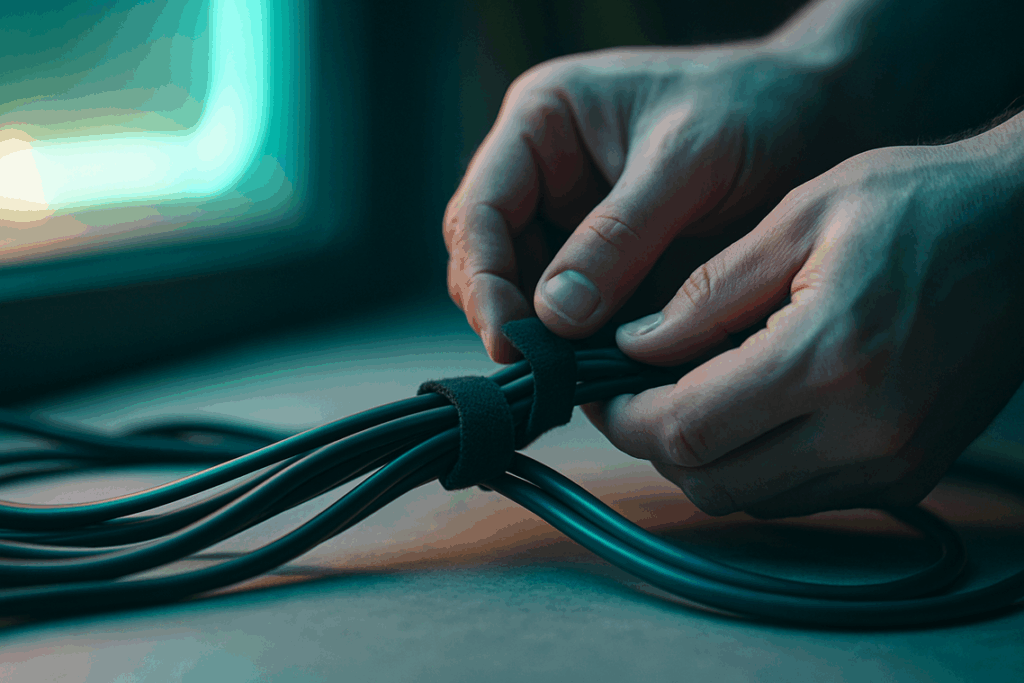
Have you ever opened your desk drawer and found a tangled mess staring back at you? Let’s start with the great debate: Velcro ties or zip ties? Reusable Velcro ties are perfect if you swap peripherals often (new mouse this month, new keyboard next). Zip ties, on the other hand, deliver a tighter, more permanent hold. Want flexibility—or set-it-and-forget-it security?
Next, consider sleeves and raceways. Cable sleeves bundle multiple wires into one clean tube, instantly reducing visual clutter. Meanwhile, adhesive raceways hide cables along the back edge of a desk or wall. Sound like overkill? Not when you see the before-and-after difference.
Then there are adhesive mounts and clips. These tiny heroes guide individual cables exactly where you want them. Why let cords dangle when you can route them with precision?
Finally, grab flush cutters. Clean trims prevent sharp edges. For next-level gaming pc cable management, every detail counts.
Taming the Beast: Mastering Your PC’s Interior
Clean builds don’t happen by accident. They’re designed. So before you plug in a single cable, lay out every component—24-pin ATX, 8-pin CPU, PCIe, SATA—and visualize the shortest, cleanest route to each header. Think of it like planning lanes in a racing game: tighter lines, faster results (and fewer crashes). Pre-planning reduces airflow obstruction and makes future upgrades dramatically easier.
Next, leverage your case’s built-in features. Modern cases include rubber grommets, vertical routing channels, PSU shrouds, and tie-down points behind the motherboard tray. These aren’t decorative—they’re airflow and maintenance tools. Routing cables through grommets keeps the front chamber uncluttered, which can improve thermals by reducing airflow turbulence (better airflow has been shown to support lower component temperatures, especially under load, according to case manufacturers like Corsair and NZXT).
Now, consider your PSU type. With a fully modular PSU, only attach the cables you actually need—less clutter from the start. Semi-modular units require a bit more planning, while non-modular PSUs demand creativity. Tuck unused cables inside the PSU shroud or unused drive bays. Out of sight, out of airflow.
Then comes the “Back Panel” technique. First, route cables behind the motherboard tray. Second, create clean vertical and horizontal runs using Velcro ties (pro tip: Velcro beats zip ties for future upgrades). Third, plug cables in only after securing the run.
Some argue cable management is purely cosmetic. But proper gaming pc cable management improves airflow, simplifies troubleshooting, and protects connectors from strain (which can extend hardware lifespan).
And if you’re aiming for peak performance, mastering these details is part of understanding what makes a competitive gaming rig tournament ready.
Conquering the Desk: Perfecting External Cable Routing
I’ll start with a confession: the first time I “finished” my setup, it looked incredible—until I stood up. Under the desk? A spaghetti monster worthy of a low-budget horror game. That’s when I learned the real battle isn’t on the desktop. It’s underneath.
The Under-Desk Solution
The single most effective fix is an under-desk cable tray (a mounted metal or mesh basket that holds power strips and loose cables). Mount one beneath the desk surface and drop your power strip, power bricks, and excess slack inside. Suddenly, everything bulky disappears. Some argue trays are overkill or hard to install. I used to think that too—until I mounted one in 20 minutes and eliminated 90% of visible clutter (no exaggeration).
Pro tip: Mount the tray toward the back edge so cables naturally fall into it instead of stretching across open space.
Monitor and Peripheral Wires
For monitors, keyboard, mouse, and headset cables, route everything backward first—never sideways. A monitor arm with built-in cable channels (internal pathways that conceal wires inside the arm) creates the cleanest look. Once I upgraded, it felt like unlocking a hidden achievement in gaming pc cable management.
Creating a “Single-Cable” Illusion
Use a cable sleeve (a flexible tube that bundles multiple wires together) to merge your monitor’s power and display cables. Instead of two dangling lines, you get one clean drop to the tray. It’s like turning party chaos into a disciplined squad.
Securing the Perimeter
Finally, run adhesive cable clips along the desk’s back edge. These small anchors guide any remaining wires along fixed paths so nothing dangles. Some say clips peel off—but quality adhesive (like 3M-backed options) holds firmly when applied to clean surfaces (3M product guidance).
When done right, you don’t see cables. You see intention.
Start with the basics: route cables behind the motherboard tray, bundle external lines with Velcro straps, and tuck excess slack under the desk. These small steps improve airflow, reduce dust buildup (yes, dust is the silent FPS killer), and make upgrades easier.
However, cable control is not a one-and-done task. Each time you install a new GPU, SSD, or RGB strip, spend five extra minutes refining your gaming pc cable management. That habit keeps thermals stable and components accessible.
Ultimately, the reward is tangible: cooler temps, steadier performance, and a setup that looks LAN-party ready for any future hardware additions.
Take Control of Your Setup and Maximize Performance
You started this guide because you wanted a cleaner, cooler, and more efficient gaming setup—and now you know exactly how gaming pc cable management directly impacts airflow, temperatures, and overall performance.
Messy cables don’t just look bad. They restrict airflow, trap heat, collect dust, and slowly chip away at the performance your hardware is capable of delivering. When you’ve invested in powerful components, the last thing you want is preventable thermal throttling or unstable gameplay holding you back.
By organizing your cables properly, routing them with airflow in mind, and securing them for long-term stability, you’re not just improving aesthetics—you’re unlocking smoother gameplay, better thermals, and a system that’s built to compete.
If you’re ready to eliminate overheating issues, boost performance, and build a setup that looks as sharp as it runs, now’s the time to act. Explore our performance-optimized builds and expert-backed guides designed for competitive gamers who refuse to settle. Join thousands of serious players upgrading their rigs the right way—optimize your system today and experience the difference immediately.