
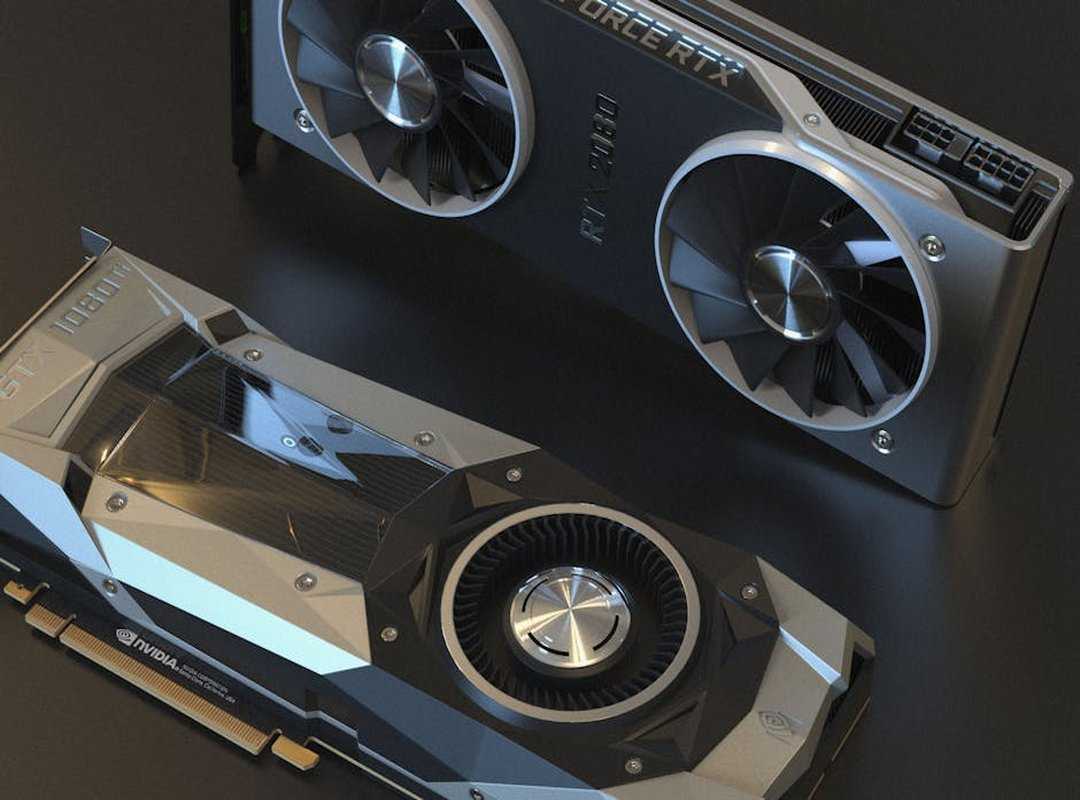
Ever feel like your game is lagging behind when it comes to speed and quality? You’re not alone. The world of gaming is all about squeezing every bit of performance out of your system.
And let’s be real: when it comes to graphics settings performance, we all want that smooth, lag-free experience. No one wants to be stuck in the middle of a key moment with a stuttering screen.
Why does this happen? Often, it’s because the default settings just don’t cut it. Getting the most out of your graphics setup can feel like a mystery.
But it doesn’t have to be. You’re probably wondering which settings to tweak, right?
This article dives into the nitty-gritty of optimizing your graphics settings. You’ll find trustworthy advice that cuts through the noise. We’ve consulted tech experts who eat, sleep, and breathe gaming.
Stick around, and by the end, you’ll know how to boost your game’s performance like a pro.
Step 1: Master Your GPU Control Panel
You want top-notch graphics settings performance? It starts before you even boot up a game. It’s all about getting into the guts of your GPU’s driver software.
Here’s the deal: if you’re using NVIDIA, the NVIDIA Control Panel is your playground. For AMD folks, it’s the Radeon Software.
Getting in there is simple. Right-click on your desktop and you’ll see the option to access your respective control panel. It’s like a secret doorway to better gaming.
And let’s face it, who doesn’t love a good secret?
Now, let’s talk about NVIDIA’s ‘Big 3’ settings. First, the ‘Power Management Mode.’ Just set it to ‘Prefer maximum performance.’ This tells your GPU to give it everything it’s got without holding back. Then, there’s ‘Low Latency Mode.’ Switch it ‘On’ or go ‘Ultra’ if you’re feeling adventurous.
It reduces input lag, which is a lifesaver in fast-paced games. Finally, ‘Texture filtering – Quality.’ Set it to ‘High performance.’ This setting prioritizes speed over fancy visuals, which is what you need in competitive gaming.
AMD has its own equivalents: ‘Radeon Anti-Lag,’ ‘Radeon Boost,’ and ‘Texture Filtering Quality.’ Use Anti-Lag for twitch shooters. It cuts down on the lag between clicking and shooting. Radeon Boost can dynamically lower resolution during movement to maintain smooth framerates.
Texture Filtering? Go for performance over quality to keep things snappy.
These global settings set a baseline for every game. Before diving into advanced stuff like Network Optimization Smooth Gameplay, make sure your hardware is ready. Trust me, it makes a world of difference.
Step 2: In-Game Settings Decoded – The FPS Killers vs.
Alright, let’s get to the meat of it. This is where we pinpoint which in-game settings eat up your FPS and which ones let you keep your frames without sacrificing visuals. It’s all about balancing graphics settings performance.
So, where should you focus your attention first?
The Heavy Hitters: Major FPS Impact
Resolution, Shadows, and Anti-Aliasing. These are the big dogs that can tank your performance. Why?
Because they demand a lot from your system. Resolution is all about the number of pixels, and more pixels mean more work for your GPU. Shadows are tricky.
They involve complex lighting calculations. Drop them from Ultra to High, and you might claw back up to 15% of your FPS. That’s a huge gain for a small sacrifice in shadow quality.
Then there’s Anti-Aliasing, smoothing out jagged edges, but also giving your GPU a hefty workout.
Next time you’re tweaking, keep these settings in check. If you want more tips, check out the best graphics settings to change.
The Middleweights: Moderate Impact
These are your Textures, Ambient Occlusion, and Volumetric Effects. Textures are a VRAM hog. They look great but require a balance between memory and processing power.
Ambient Occlusion? It’s a neat trick that adds depth by simulating shadows in small corners. Sure, it costs some FPS, but it makes your game world pop.
Volumetric Effects like fog and light rays are beautiful but costly. Use them wisely.
The Featherweights: Minimal Impact
Anisotropic Filtering and Texture Filtering. These might sound fancy, but they’re almost “free” when it comes to performance. They clean up textures at angles and should be maxed out if you have any FPS to spare.
Pro tip: Disable Motion Blur and Chromatic Aberration. They might sound artsy, but they muddy your vision and slow your response times. Clean visuals equal better gameplay.
So, if you’re serious about squeezing every last frame, start with the heavy hitters and work your way down. Balance is key, and sometimes you gain more by giving up less. Make the right choices, and you’ll see the difference.
The Art of the Trade-Off: Finding Your Personal Sweet Spot
Here’s what I’ve learned: forget chasing maximum FPS. Instead, aim for a target framerate that matches your monitor’s refresh rate. Stable and smooth frames are what matter.

Trust me, those micro-stutters kill the vibe more than anything else. Ever tried playing a game with jittery frames? It’s the worst.
So, here’s my simple method for tuning any game. First, decide your target framerate and resolution. Seems obvious, right?
But you’d be surprised how many skip this step. Next, start with a global ‘High’ or ‘Medium’ preset. Run the in-game benchmark or find a demanding part of the game to test.
Get your baseline.
If your FPS is too low, don’t panic. Tweak the ‘Heavy Hitter’ settings (you know, like shadows and reflections) one by one until you hit your target. Still struggling?
Maybe it’s time to consider Important Updates Boost Gaming for a little boost. On the flip side, if you’re cruising well above your target, start increasing ‘Middleweight’ or ‘Featherweight’ settings. Why not enjoy some visual splendor without sacrificing performance?
Pro tip: use an on-screen display like MSI Afterburner. It helps keep an eye on FPS and those nasty 1% lows. Stable frames are more important than a high average FPS.
Ever noticed how movies run at 24 FPS yet still look smooth? That’s the magic of stability. So, find your balance.
Your graphics settings performance will thank you.
Four Configuration Blunders Wrecking Your Gaming
Let’s face it. We’ve all been there, thinking we nailed our graphics settings performance, only to see our game struggling like it’s running on a potato. First, running on outdated drivers.
Seriously, it’s 2023, people. Those shiny new ‘Game Ready’ drivers can squeeze out double-digit performance gains. Why miss out?
Then there’s VRAM. If you’ve ever tried cranking up textures only to get a slideshow instead of smooth gameplay, this one’s for you. Your GPU can only handle so much.
Check your VRAM usage in-game.
Now, let’s talk V-Sync. It’s easy to think it’s helping, but it just adds input lag. Disable it.
If you’ve got G-Sync or FreeSync, use them. No luck there? Set a manual frame rate cap below your monitor’s refresh rate.
Trust me, you’ll thank me later.
Last but not least, stop blaming your GPU for every hiccup. Some games are CPU-bound. In large-scale RTS or simulators, it’s the CPU that’s sweating.
Tweak ‘Unit Count’ or ‘Physics’ instead. You can’t GPU your way out of a CPU bottleneck.
Master Your Game’s Potential
You’ve got the upper hand now. Understanding graphics settings performance isn’t a mystery anymore. You’ve tackled the chaos of graphics menus.
By mastering driver tweaks, in-game adjustments, and balancing, you’ve secured a gaming edge.
But wait, is your hardware ready to keep pace with your newfound skills?
No more guessing. Upgrade to our competitive gaming rigs. They’re crafted for max performance and stability right out of the box.
Don’t let your hardware hold you back. Explore these rigs now and let your skills shine. You’ve learned the art of tuning.
Now, make sure every frame counts.
 Stephanie Martinezenic writes the kind of optimization tips for gamers content that people actually send to each other. Not because it's flashy or controversial, but because it's the sort of thing where you read it and immediately think of three people who need to see it. Stephanie has a talent for identifying the questions that a lot of people have but haven't quite figured out how to articulate yet — and then answering them properly.
They covers a lot of ground: Optimization Tips for Gamers, Pbox Competitive Gaming Rigs, Performance Boosting Builds, and plenty of adjacent territory that doesn't always get treated with the same seriousness. The consistency across all of it is a certain kind of respect for the reader. Stephanie doesn't assume people are stupid, and they doesn't assume they know everything either. They writes for someone who is genuinely trying to figure something out — because that's usually who's actually reading. That assumption shapes everything from how they structures an explanation to how much background they includes before getting to the point.
Beyond the practical stuff, there's something in Stephanie's writing that reflects a real investment in the subject — not performed enthusiasm, but the kind of sustained interest that produces insight over time. They has been paying attention to optimization tips for gamers long enough that they notices things a more casual observer would miss. That depth shows up in the work in ways that are hard to fake.
Stephanie Martinezenic writes the kind of optimization tips for gamers content that people actually send to each other. Not because it's flashy or controversial, but because it's the sort of thing where you read it and immediately think of three people who need to see it. Stephanie has a talent for identifying the questions that a lot of people have but haven't quite figured out how to articulate yet — and then answering them properly.
They covers a lot of ground: Optimization Tips for Gamers, Pbox Competitive Gaming Rigs, Performance Boosting Builds, and plenty of adjacent territory that doesn't always get treated with the same seriousness. The consistency across all of it is a certain kind of respect for the reader. Stephanie doesn't assume people are stupid, and they doesn't assume they know everything either. They writes for someone who is genuinely trying to figure something out — because that's usually who's actually reading. That assumption shapes everything from how they structures an explanation to how much background they includes before getting to the point.
Beyond the practical stuff, there's something in Stephanie's writing that reflects a real investment in the subject — not performed enthusiasm, but the kind of sustained interest that produces insight over time. They has been paying attention to optimization tips for gamers long enough that they notices things a more casual observer would miss. That depth shows up in the work in ways that are hard to fake.